Bookmark Overview
Definition
Bookmarks are user defined shortcuts to select data points within a document. Each bookmark is defined by a description, offset, length, and an optional data type. Bookmarks are tied to a single document as opposed to being shared across multiple documents. This design allows you to maintain distinct bookmarks for each document.
Bookmarks can also reference Structure Definitions. This combined with the ability to calculate offsets and sizes within the bookmark definition enables complete parsing of some file formats.
Viewing Bookmarks
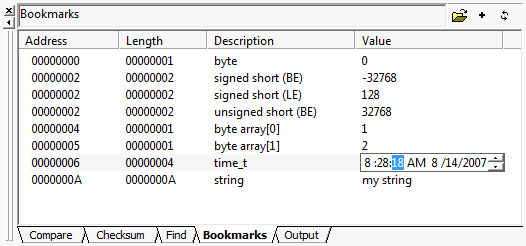
Bookmarks are displayed within the "Bookmark" tab of the Results Window. The example below is demonstrating a set of bookmarks created for a ZIP file header. Whenever you change document focus, the bookmark results window will repopulate with the bookmarks for the in focus document.
- Selecting a bookmark, will highlight the bookmark's data (address + offset) in the document view. You can customize the foreground and background color of highlighting in the Display Preferences.
- Pressing F2 or double clicking the left mouse button on the value column with allow you to edit the bookmark interpreted value.
- Right Clicking within Bookmark Results Window allows you to add a new bookmark or clear all of the bookmarks for this document. If bookmark is selected, you may also edit the bookmark or remove (delete) the bookmark.
- Press the "refresh" button in the upper right of the bookmark results window to re-apply all of the bookmarks. This should be performed whenever bookmarks are edited or when the data driving dynamic bookmarks is changed.
For additional information, please view the following topics: